


OBDTalk User Guide
From plugging the device into your vehicle to reading and clearing fault codes, step by step with app screens.
Before you start
- Install the appDownload the OBDTalk app for free from the App Store or Google Play.
- Turn on Bluetooth and locationBluetooth and location services must be on on your phone or tablet.
- Plug the device into the OBD portNot sure where the port is? Find your vehicle on the OBD port locations page.
- Turn the ignition onOpen the app and follow the steps below.
What is in the box?
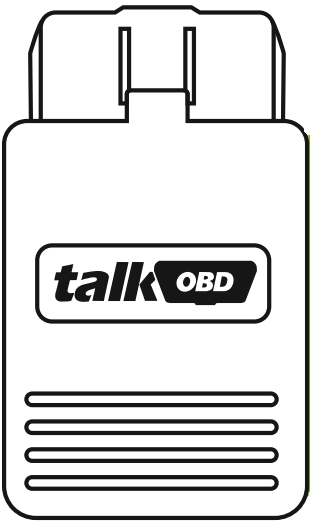
- Size
- 71 × 43 × 24 mm
- Connection
- OBD2 port and Bluetooth
- In the box
- OBDTalk device and user manual
The app screens below are shown in the Turkish interface.
Connect
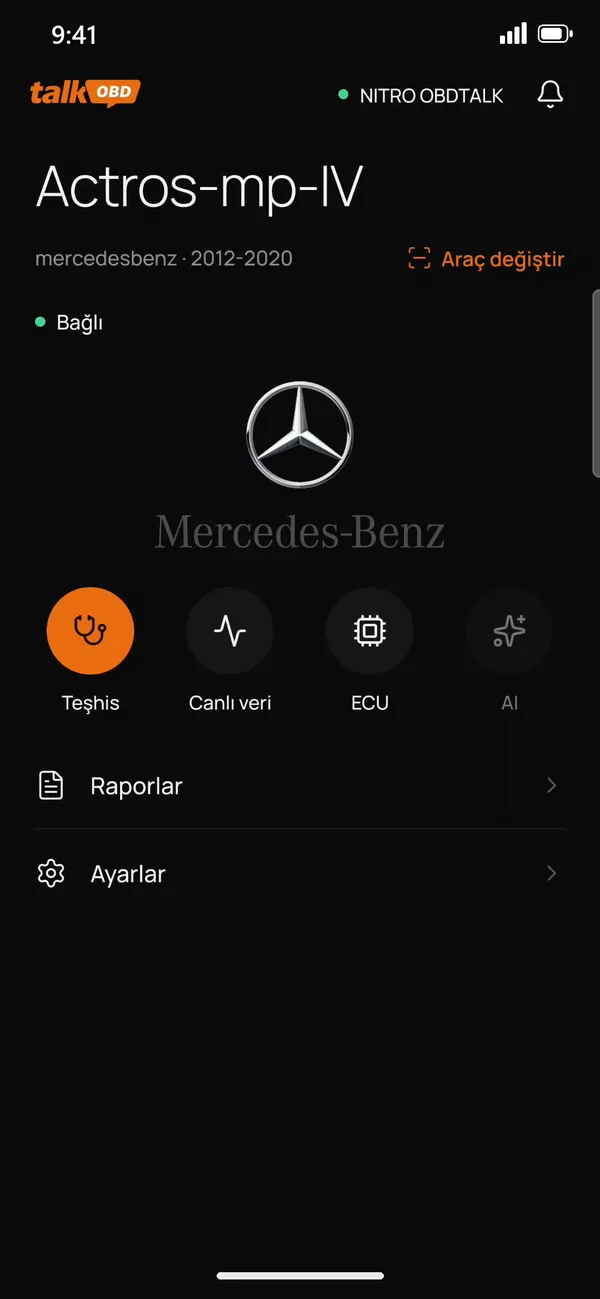 1
1Home screen
When you open the app, the home screen shows your selected vehicle. From here you reach Diagnosis, Live data, ECU and AI shortcuts, Reports and Settings. The green "NITRO OBDTALK" label at the top right shows the device is connected.
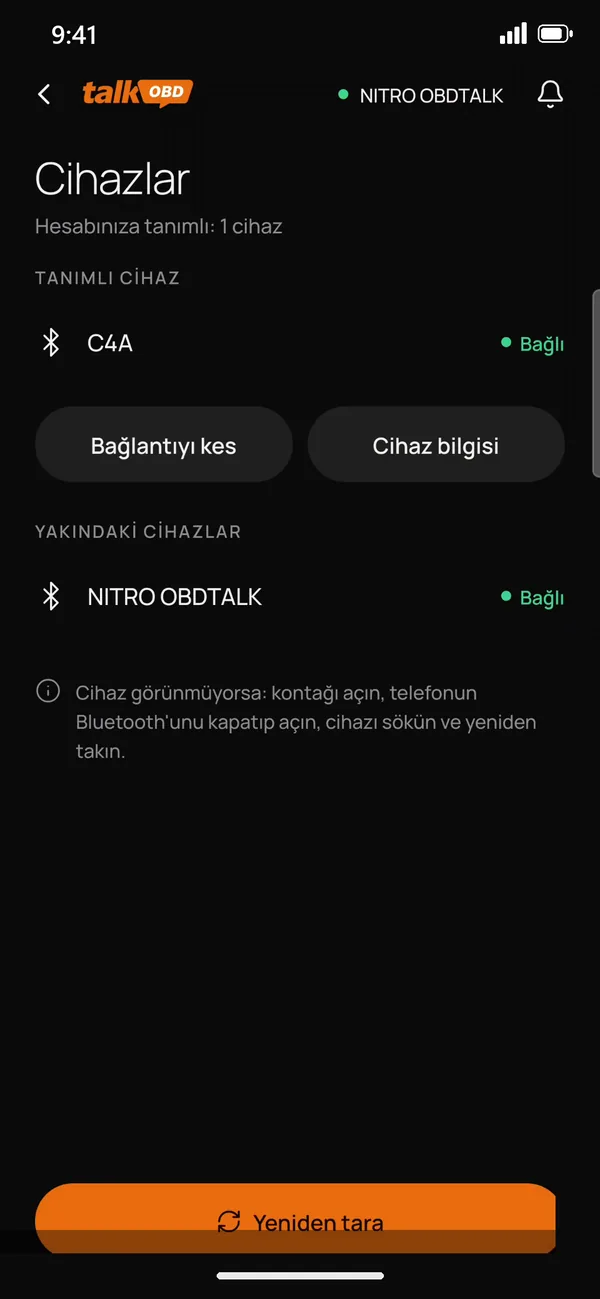 2
2Connect the device
On the Devices screen, the device registered to your account connects over Bluetooth and shows "Connected". If it does not appear, tap "Scan again".
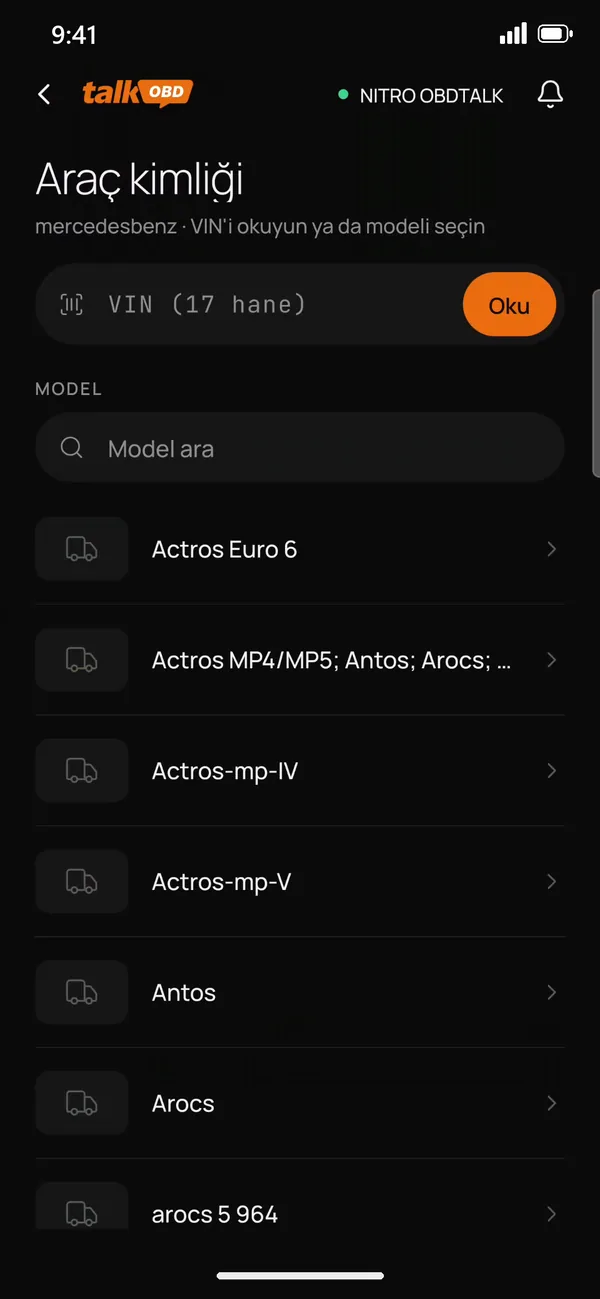 3
3Choose your vehicle
Use "Change vehicle" on the home screen to pick the category, brand and model. On the vehicle identification screen you can read the VIN or pick the model from the list.
Device not showing up?Turn the ignition on, switch your phone's Bluetooth off and on, then unplug the device and plug it in again.
Diagnosis and fault codes
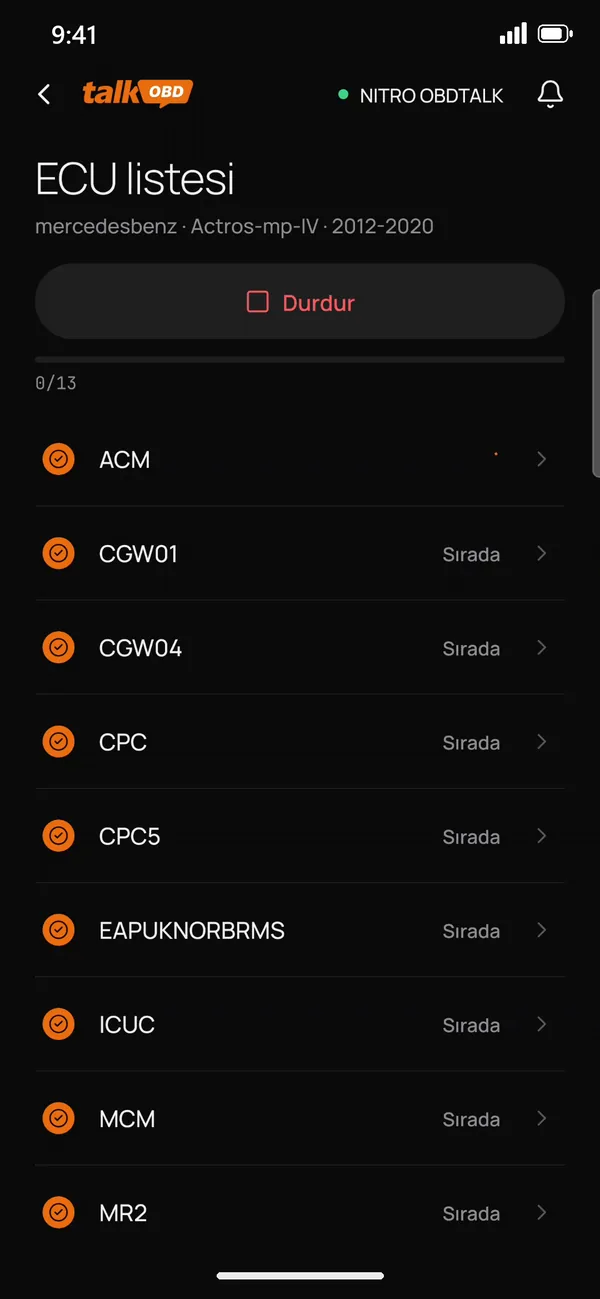 4
4Scan the ECUs
Tap Diagnosis. The ECU list scans the vehicle's control units one by one; tap "Stop" to stop the scan, or scan only the units you select.
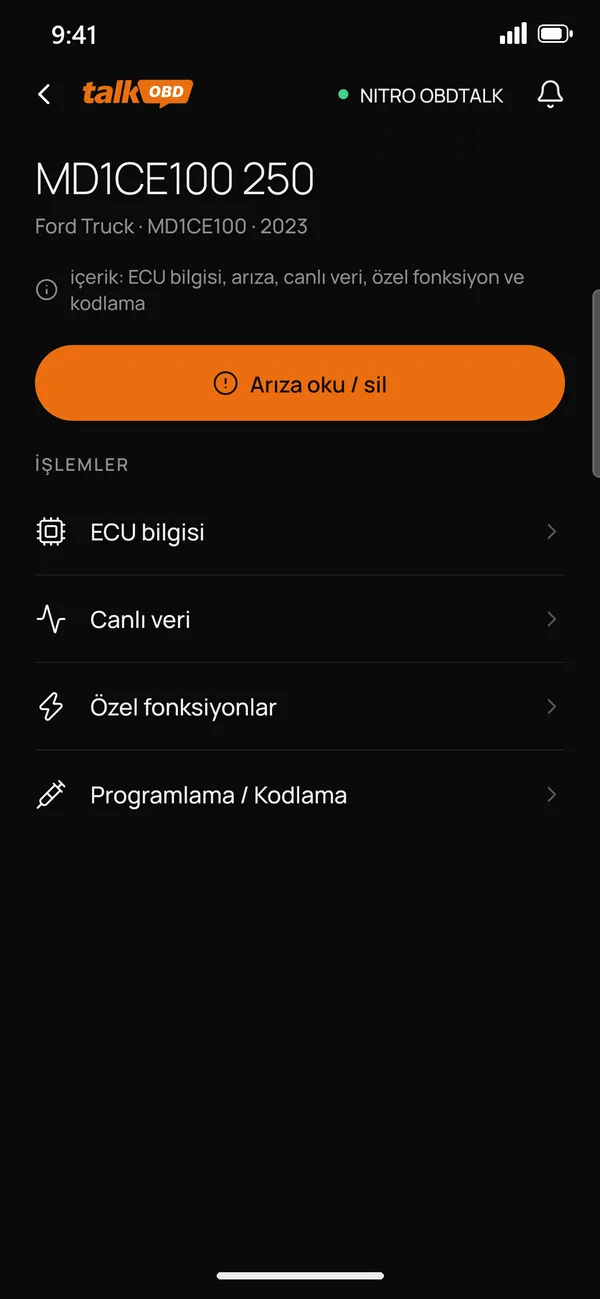 5
5Read and clear faults
Tap a control unit. Use "Read / clear faults" to read and clear stored fault codes. The same screen leads to ECU information, live data, special functions and programming/coding.
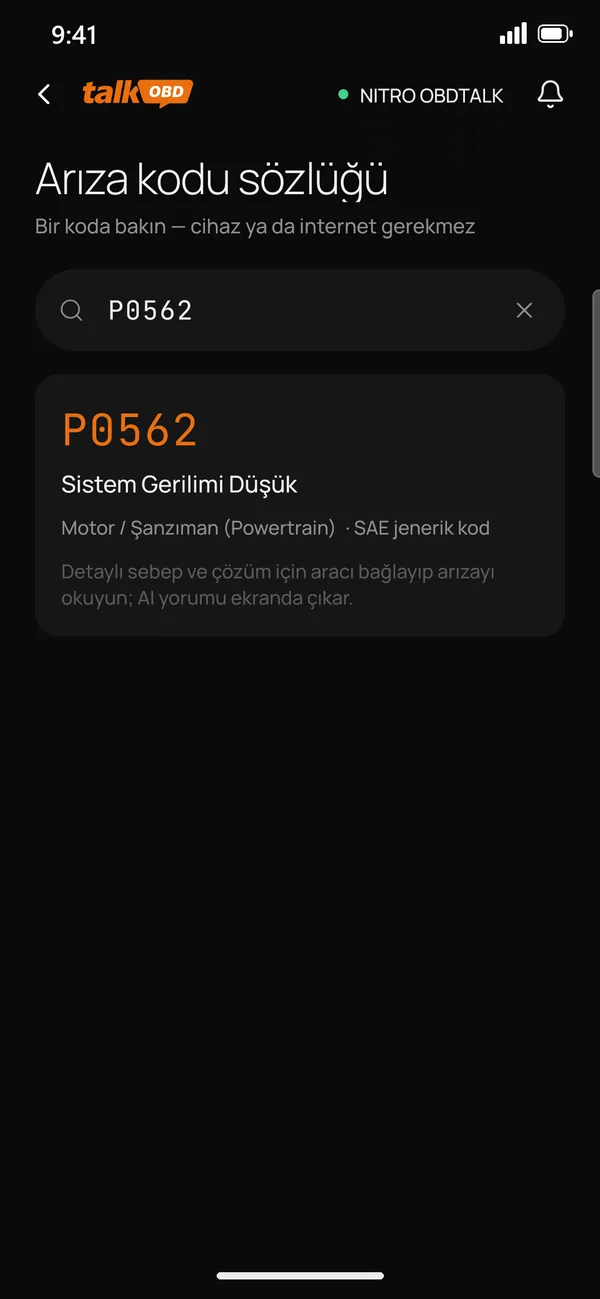 6
6Look up a code
Type a code (e.g. P0562) into the Fault code dictionary in Settings to see what it means and which system it relates to, without the device or internet.
Look up what a code means in the fault code dictionary.
Live data and ECU information
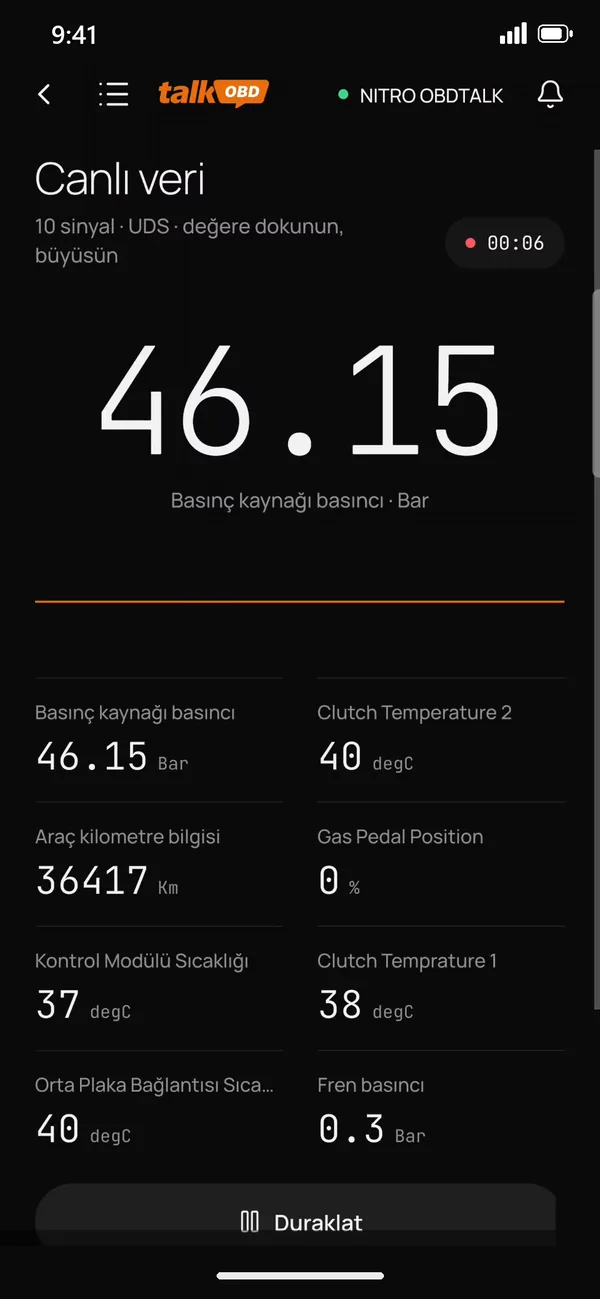 7
7Watch live data
The Live data screen lists the signals of the selected ECU with their current values. Tap a value to show it large, or select the signals you need and use "Show selected" to watch only those. Pause the stream with "Pause" and continue with "Start".
 8
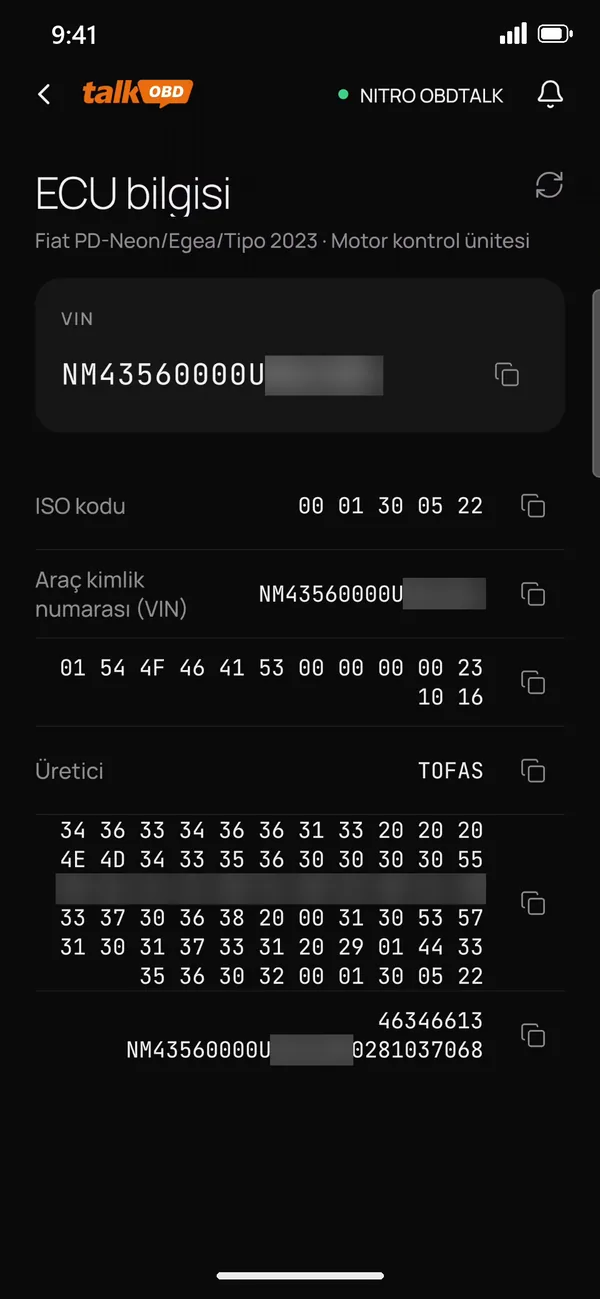
8View ECU information
The ECU information screen reads the VIN, ISO code, manufacturer and software/hardware details. You can share them or save them as a report.
Special functions
 9
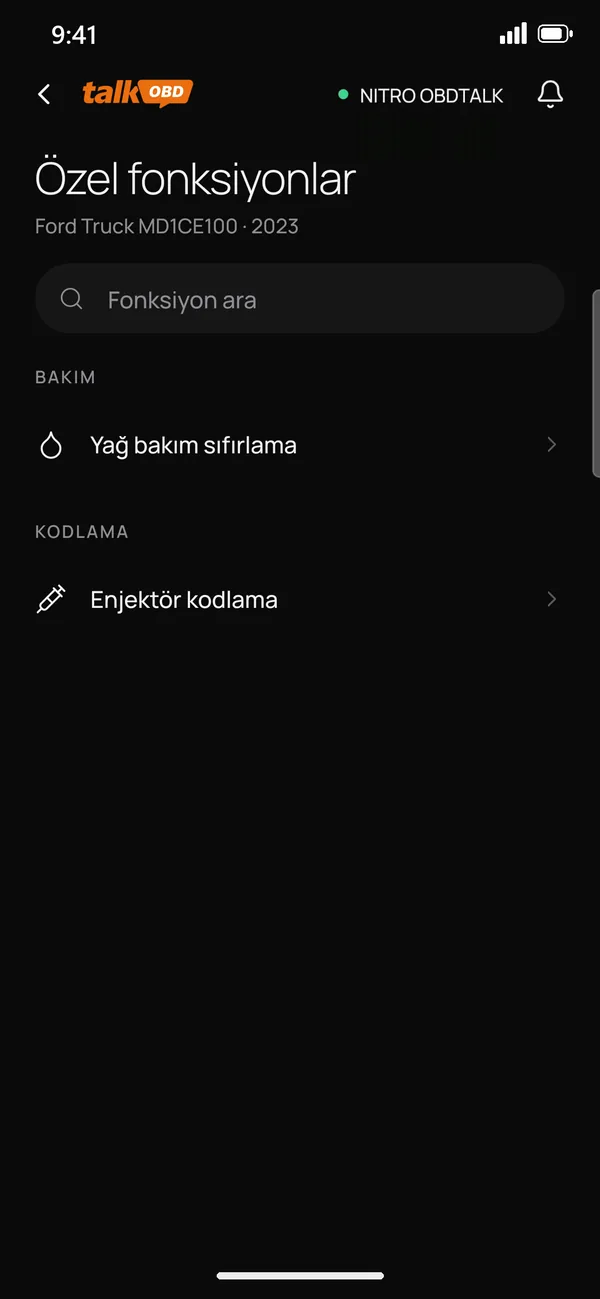
9Special functions
Special functions lists the service and coding operations available for your vehicle, such as oil service reset and injector coding. Use the search box to find an operation.
CautionSpecial functions write permanently to the vehicle. Read the on-screen warning; if you are not sure, ask us before running them.
Report
 10
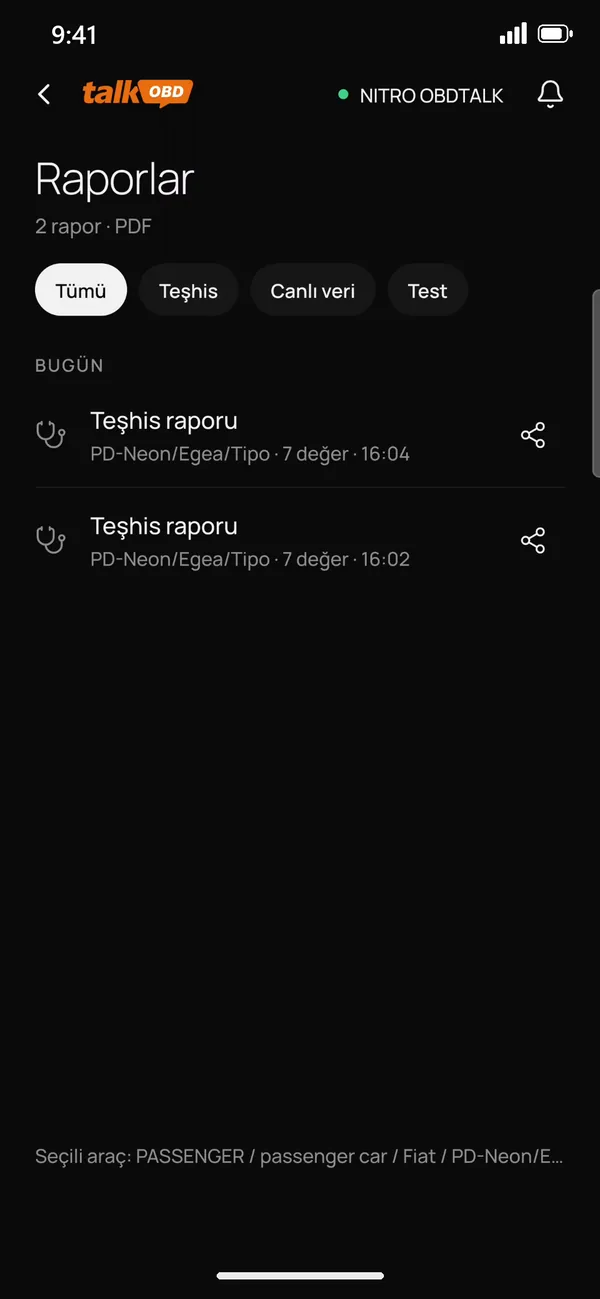
10Reports
Reports keeps your diagnosis and live data reports as PDF files. Use "Create report" to produce and share a report for the selected vehicle.
Stuck on a step?
Tell us on WhatsApp which screen you are on and we will sort it out together.


OBDTalk, Nitro Mekatronik'in ağır vasıta ve ticari araçlar için geliştirdiği arıza tespit çözümleridir. 2009'dan beri Adana'dan, Türkiye'nin dört bir yanına.